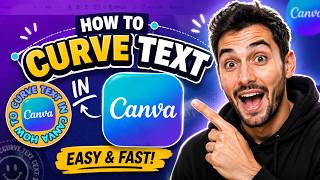

How to Curve Text in Canva
This is a quick video tutorial showing you how to curve text in Canva and design an easy yet cool-looking round logo. The tutorial walks-through the basics of making the curved text in Canva and how to customize it.
Though you can download the PNG design when you're done, unfortunately Canva does not allow transparent background download on the free plan. So, that makes it difficult to use if you want to place it over an existing design.
Canva Curved Text Alternative
Because Canva offers limited curved text controls and its free plan doesn't support downloading transparent PNGs, I'll show you a better alternative: the MockoFun's curved text generator which is a free online tool.
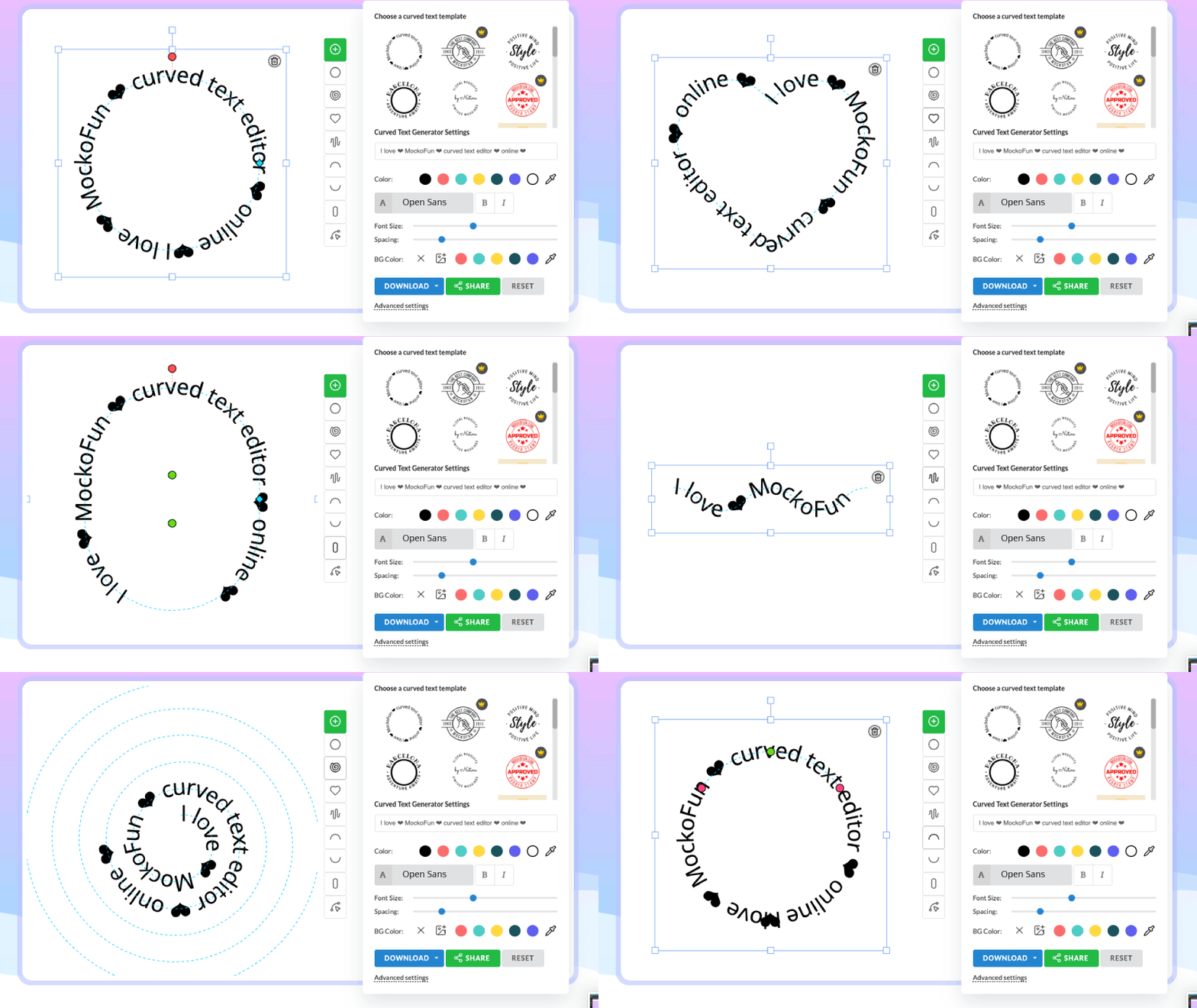
PNG download with transparent background is available on the FREE plan. And, it has a quick tool and a canvas tool similar to Canva. And my personal opinion is that MockoFun's curved text tool is better than Canva, a lot better.
You must try out all the curved text shapes it has. I especially love the handles it has for adjusting the curve settings for the circle text, arc text, oval text, heart shaped text, etc.
Which curved text tool do you like best? Canva or MockoFun? My pick is definitely MockoFun.
Should I make an indepth presentation of MockoFun's curved text generator?
Curved Text FAQ
In Canva, you can bend text into a circle or an arc by selecting your text, going to the top menu, clicking Effects, and scrolling down to the Shape section to choose Curve.
No, Canva's free plan does not allow you to export designs (like PNGs) with a transparent background. To get a transparent PNG on Canva, you need a Canva Pro subscription.
MockoFun is an excellent free alternative that lets you curve text easily and download your final image as a PNG with a transparent background entirely for free, making it ideal for logo design.
Yes. While Canva primarily focuses on a basic circular arc, MockoFun comes with advanced text presets and shape options, including spirals, hearts, waves, custom paths, pills, squares, and triangles.
Yes, both platforms let you double-click and edit your text inline. However, MockoFun provides extra visual handles directly on the canvas to control curve radius and sizing very intuitively.
Yes, both tools allow you to use a wide variety of fonts. Depending on your platform tier, you can also upload your own custom font files to apply to your curved text designs.
MockoFun is often a better choice for users who need more curved text shapes, advanced path controls, creative text effects, and the ability to download transparent PNGs without a paid subscription.
Yes, both tools can create circular text for branding. However, MockoFun offers deeper customization options specifically tailored for logo-style curved text and badge designs.
No comment(s) for "Canva Curved Text"