
How to Curve Text in PowerPoint
To curve text in Microsoft PowerPoint, you can use built-in text effects in just a few steps:
- Insert your text by going to Insert → Text Box.
- Select the text box, then click the Format (Shape Format) tab.
- Choose Text Effects → Transform.
- Pick a curved style from Follow Path (like Arch or Circle).
- Adjust the curve by dragging the text box handles.
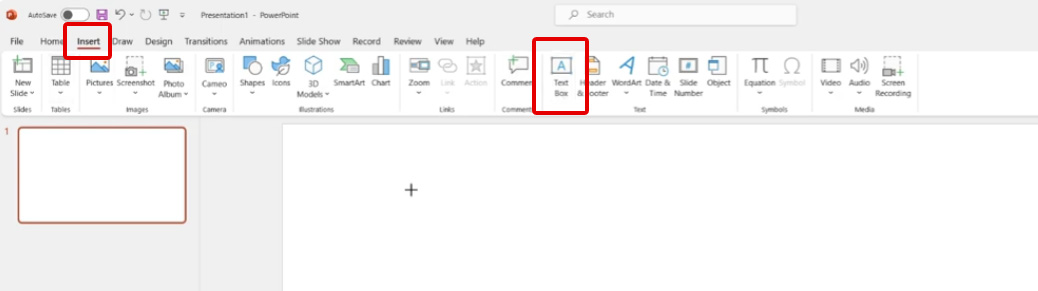
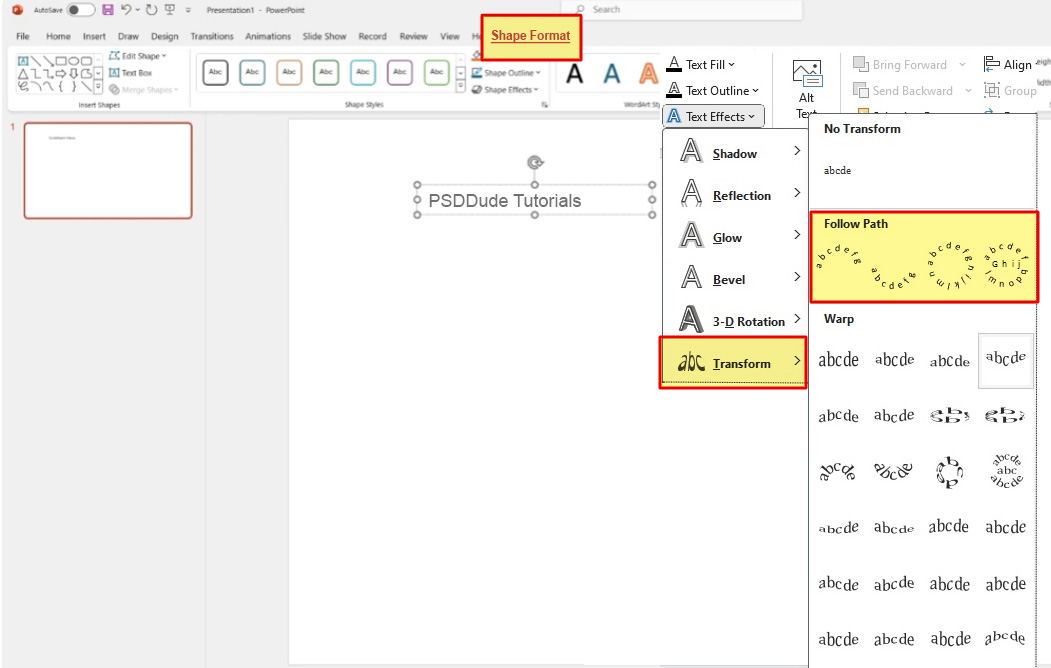
The curved text in Powerpoint is useful for creating logos, titles, or decorative slides quickly without extra tools.
How to Bend Text in PowerPoint
In Microsoft PowerPoint, “bend text”, “curve text”, “warp text” come from the same feature Text Effects → Transform.
Inside Text Effects → Transform, you’ll see two sections:
-
Follow Path ➡️ This is what most people mean by true curved text (text follows a path)
- Arch Up
- Arch Down
- Circle
- Button
-
Warp ➡️ This distort/stretch the text shape
- Wave
- Inflate
- Deflate
- Fade, etc.
So the correct distinction:
- ✅ Follow Path - letters stay normal and just follow a curve / bent along a path
- ✅ Warp - letters themselves get squished, distorted or wavy forming stylized shapes
The difference is just in how it looks:
- Curve (Arch/Circle): smooth, even curve (like a rainbow or full circle)
- Bend (Up/Down): more flexible, slightly tighter or exaggerated shaping
So “bend” isn’t a separate tool—it’s just a different style of curving within the same menu.
👉 Quick tip: Go to Text Effects → Transform, then try options under Follow Path (curve) vs Warp (bend-like effects) to see the difference.
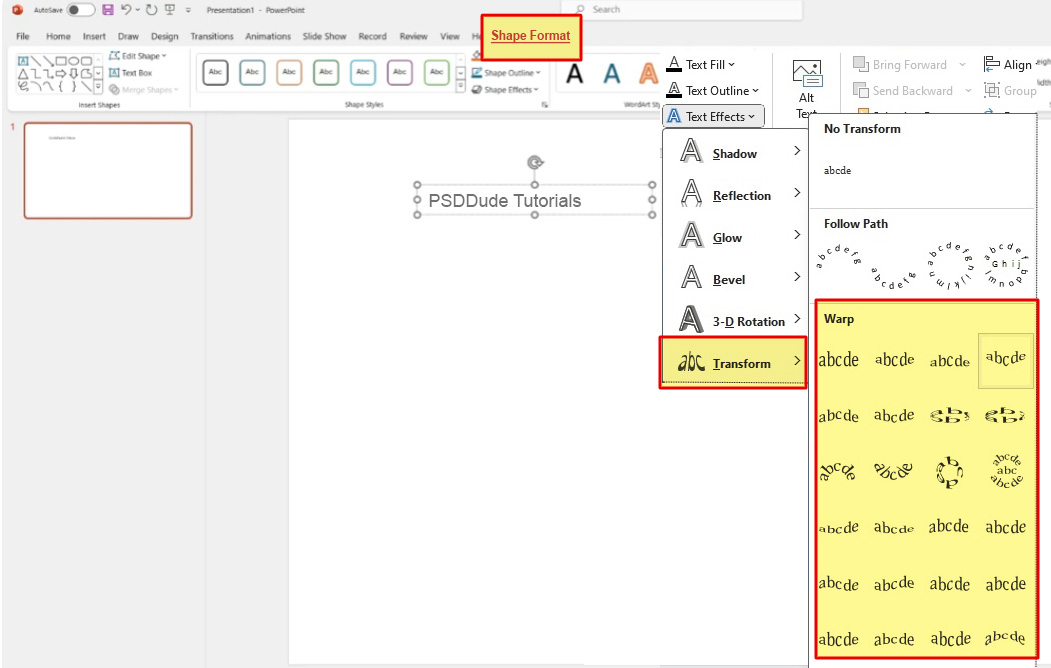
How to Warp Text in PowerPoint
In Microsoft PowerPoint, warp text is a type of text effect that lets you distort text into more creative shapes—not just simple curves.
How to warp text:
- Insert a text box (Insert → Text Box)
- Select the text
- Go to Shape Format → Text Effects → Transform
- Choose a style under Warp (like Wave, Inflate, Deflate, Triangle)
- Drag the handles to adjust the distortion
What makes warp different?
- Curve/Bend: follows a smooth path (arc or circle)
- Warp: reshapes the text itself (stretching, squeezing, waving)
Tip: Use warp when you want more playful or dramatic text designs, like posters or creative slides.
PowerPoint Alternative for Curved Text
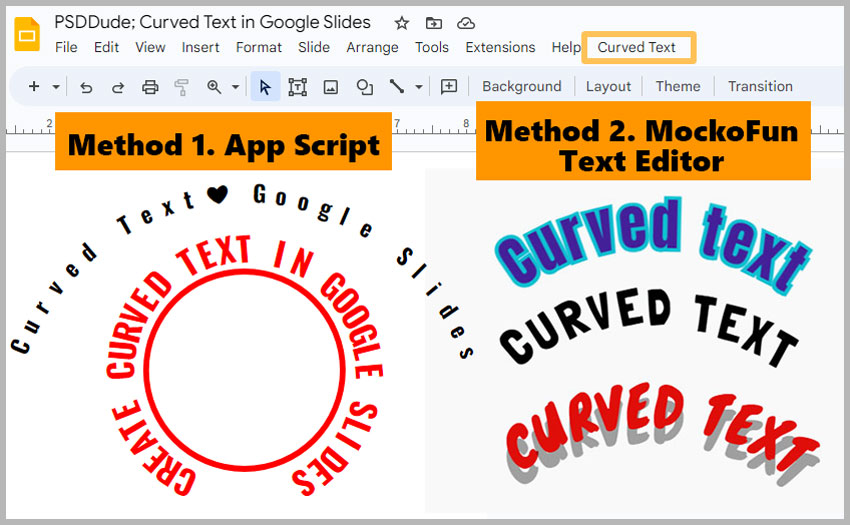
1. Google Slides Curved Text
My top favorite PowerPoint alternative is Google Slides which is a free online app.
Google Slides has a little less features than PowerPoint but it is still a great tool. In my previous tutorial I explained how to curve text in Google Slides using three different methods.
2. Mockofun Curved Text
Use PowerPoint curved text for quick, simple edits.
But, if you want something that looks more professional, customizable, or design-heavy, the MockoFun round text generator is usually the better tool.
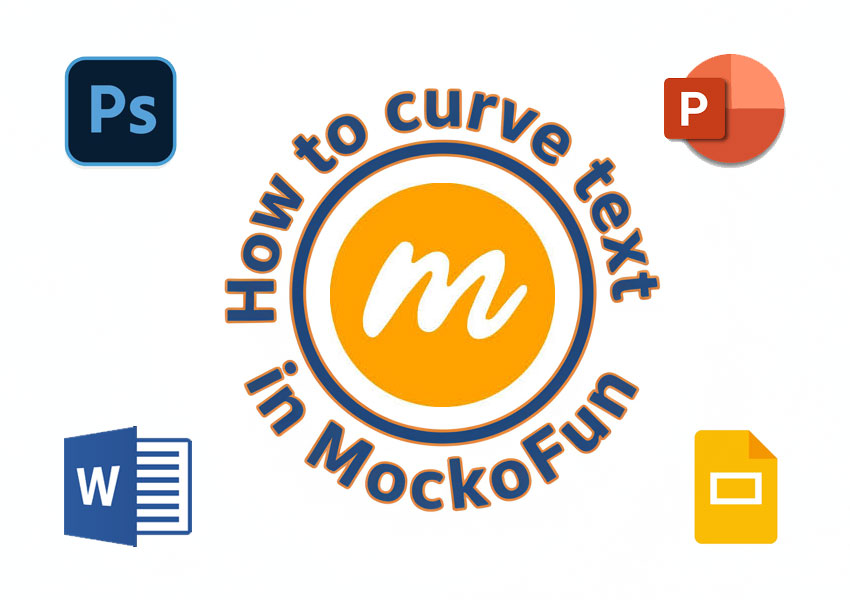
Many people want to learn how to curve text in Canva not knowing that there are better free alternatives that allow them to export the curved text as PNG with transparent background.
3. Photoshop Curve Text
If you are still using Photoshop, learn how to curve text in Photoshop quick and easy. Then, you can insert the text design in PowerPoint.
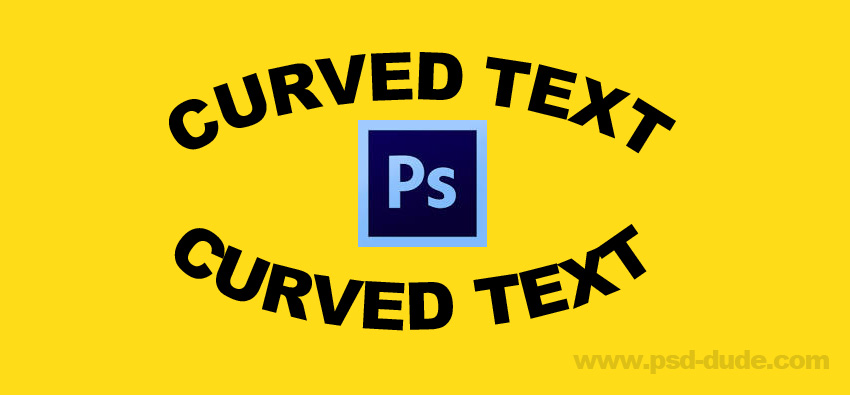
Here are 5 solid reasons why creating curved text in MockoFun or Photoshop and then inserting it into PowerPoint can be better than using PowerPoint’s built-in curved text:
- More design flexibility - MockoFun & Photoshop give you finer control over curvature, spacing, and alignment. PowerPoint’s curved text (WordArt) is more limited and can feel rigid when you try to fine-tune the look.
- Better typography options - MockoFun & Photoshop have a much larger font library and better font pairing suggestions.
- Higher-quality export - You can export curved text from MockoFun & Photoshop as a transparent PNG or SVG, which often looks sharper and more polished when inserted into PowerPoint—especially for presentations on large screens.
- Better for complex designs - If your curved text is part of a larger design (logos, badges, social-style graphics), tools that have advanced curved text, handle layering, effects, and composition much better. PowerPoint is mainly built for slides, not detailed graphic design.
If you like the text in circle shape and want to try other effect and maybe other shapes too, try this text in shape generator.
No comment(s) for "How to Curve Text in PowerPoint"